
How to download Pinterest videos, images and GIFs
Pinterest does not put a download button on most pins, so saving a video takes a small detour: copy the pin link, paste it here, and save the file. This guide walks through every step — on the Pinterest app, on desktop, and on iPhone, Android and PC.
Free · No sign-up · No watermark · HD when available
How to copy a Pinterest pin link
Everything starts with the link to one specific pin. Copy it from wherever you found the pin — the app, the website, or a short link someone sent you.
From the Pinterest app (iPhone and Android)
- Open the Pinterest app and tap the pin to open it full-screen.
- Tap Share — the arrow icon — and then tap Copy link.
- If there is no share button, tap the three dots on the pin first, then choose Copy link from that menu.
From Pinterest on desktop
- Open pinterest.com in your browser and click the pin to open it.
- Copy the address from your browser bar — it looks like pinterest.com/pin/ followed by a long number.
- Or click Share under the pin and choose Copy link, which copies the same address.
From a pin.it short link
- A pin.it link is Pinterest’s own short link for a pin — paste it exactly as you received it.
- If it came in a message, long-press the link and choose Copy.
- Check the whole link was copied: a pin.it link cut off halfway will not open the pin.
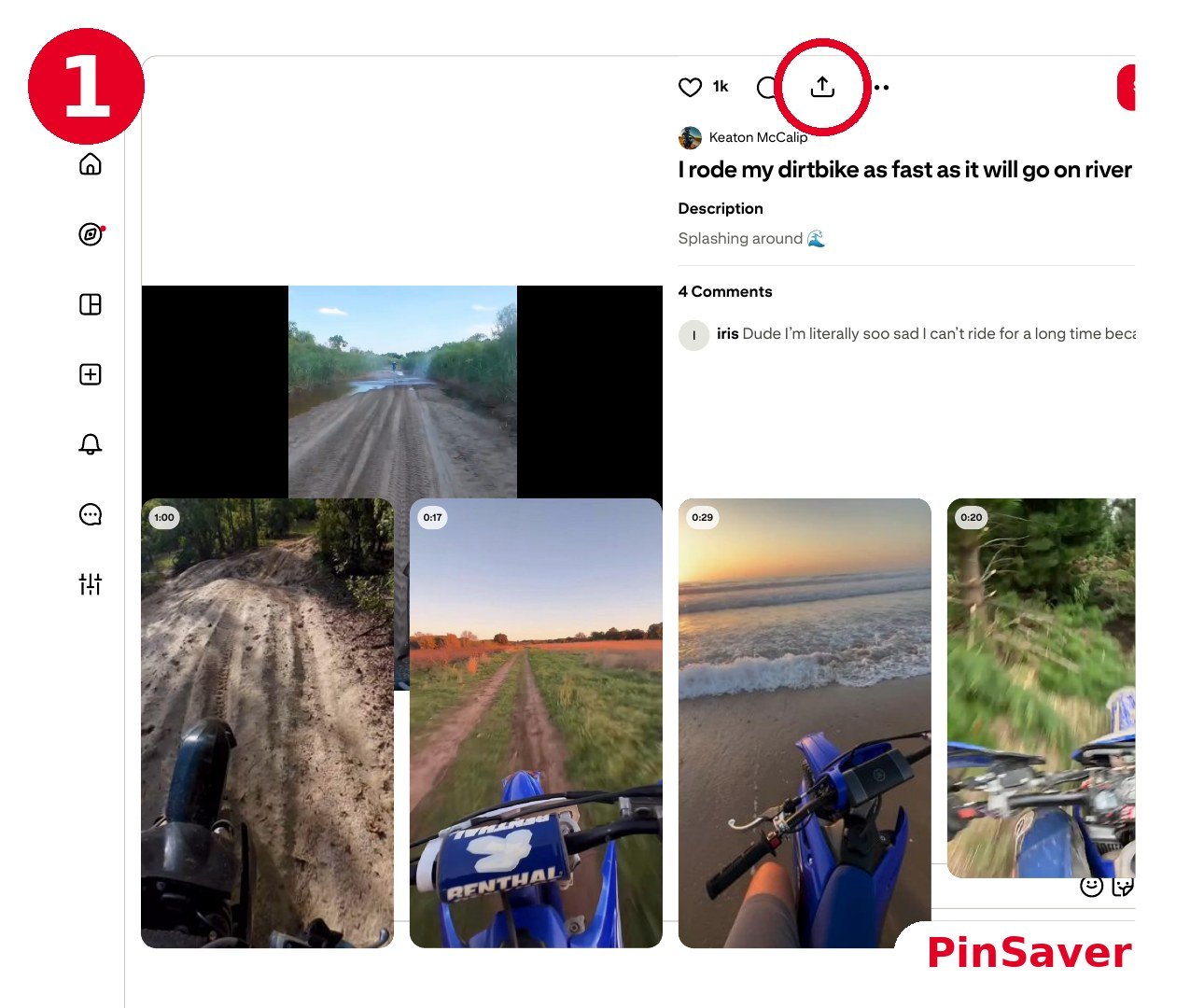
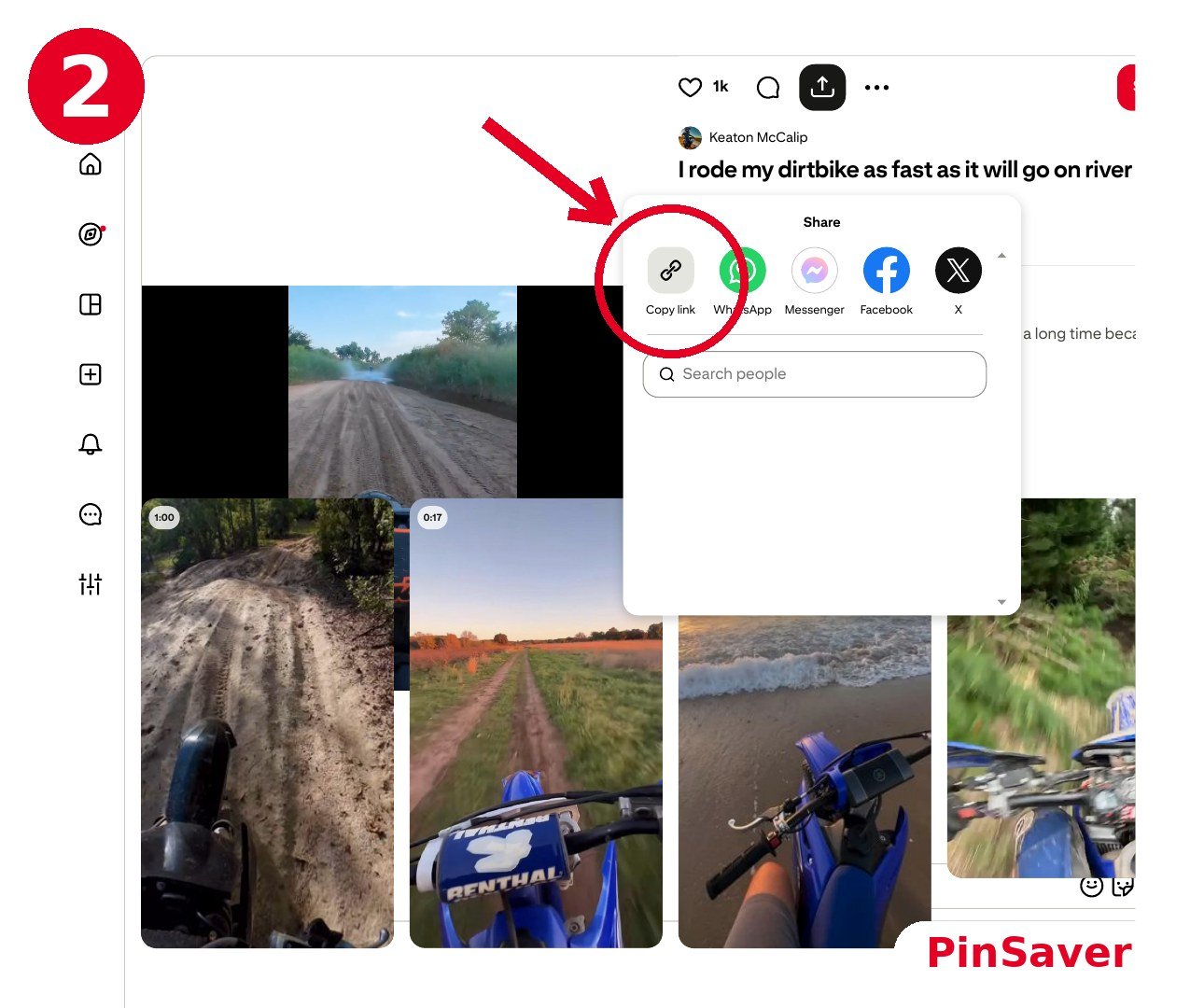
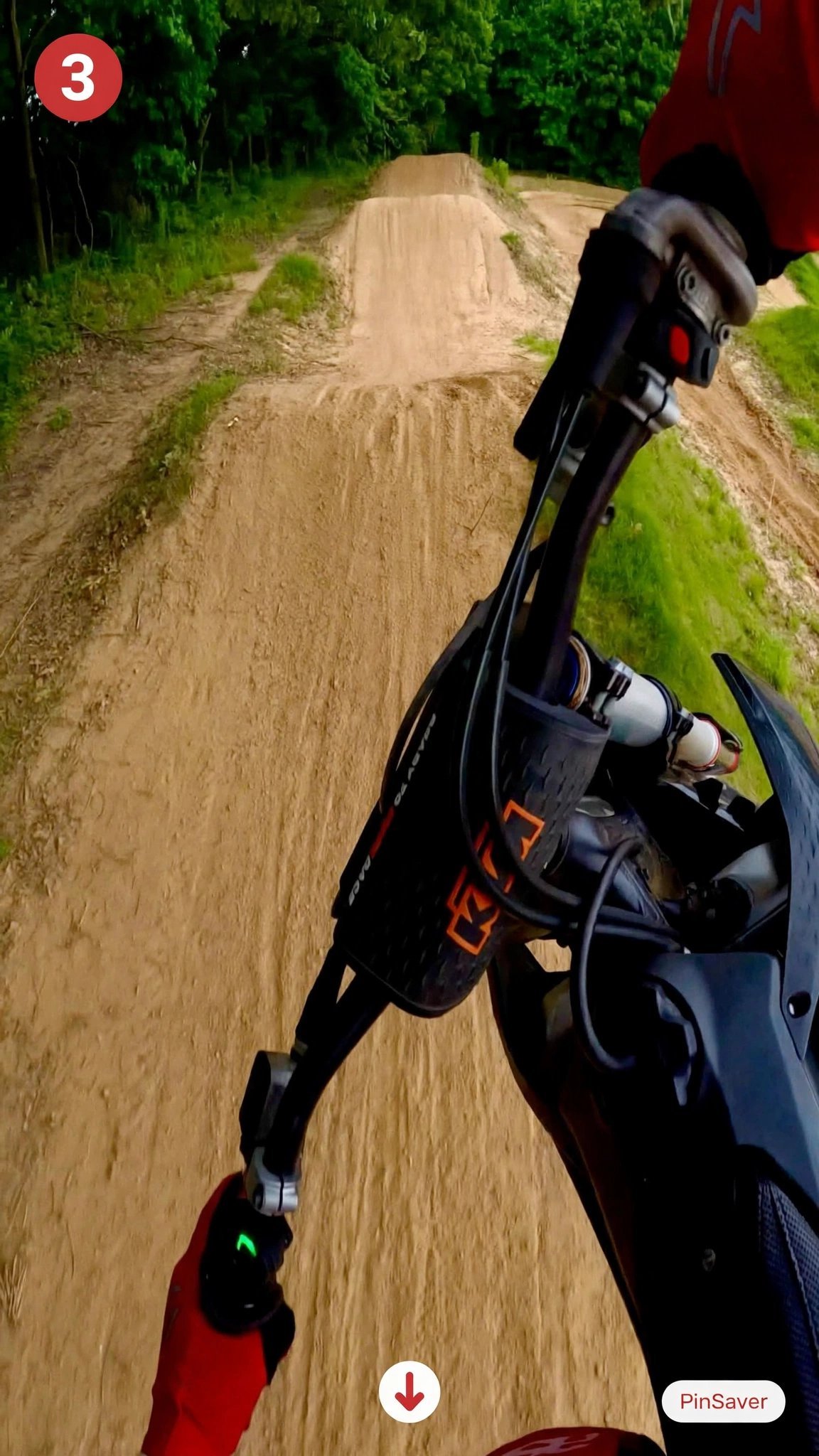
Screenshots show the public video pin “I rode my dirtbike as fast as it will go on river” by Keaton McCalip (@keatonmccalip on Pinterest). The pin belongs to its creator and is shown here only as a tutorial example — if the creator asks for it to be removed, it will be taken down; see our DMCA page.
One thing to check before you go further: the link should point to a single pin, not to a board, a profile, or a search page. Board and profile links do not hold one video or image, so they will not return a file.
How to download the pin with PinSaver
Once you have the link, the download itself is the same on every device. No account, no app to install, and nothing to sign in to.
Paste the link
Paste the pin link into the download box at the top of this page.
Press Download
PinSaver reads the public pin page and lists the video, image or GIF it finds there.
Save the file
Tap the Download button next to the file. It saves in the highest quality available, with no added watermark.

The same box handles every kind of pin. If you already know what you are saving, go straight to the video downloader, the image downloader, or the GIF downloader.
Saving on iPhone, Android and PC
The download works the same everywhere, but where the file ends up depends on your device. Here is what to do on each one.
iPhone and iPad (Safari)
- Paste the link in Safari, tap Download, and choose Downloads when Safari asks where to save the file.
- Open the Files app and look in Downloads for the finished file.
- Tap Share on the file, then choose Save Video — or Save Image for a photo — to move it into Photos.
Android (Chrome)
- Paste the link in Chrome and tap Download. The file goes to your Downloads folder.
- Your gallery app picks MP4 videos and images up from Downloads on its own.
- If you cannot see it yet, open Files, go to Downloads, and tap the file to open it.
PC and Mac
- Copy the pin link from your browser and paste it here, then click Download.
- Click the Download button next to the file you want.
- The file lands in your normal downloads folder — no extension and no desktop program needed.
When a download does not work
Most failed downloads come down to one of four causes. Work through them in order before trying again.
| Problem | What to do |
|---|---|
| PinSaver says the pin could not be found | The pin is probably private, deleted, or only visible after logging in — PinSaver works with public pins only. Check the pin still opens in Pinterest, then copy the link again from the pin itself, not from a board or profile. |
| The link does not work at all | Make sure it is a link to one pin (pinterest.com/pin/… or pin.it/…), not a board, profile or search page, and that you pasted the whole link. Copy it again from the pin and try once more. |
| The video has no download button on Pinterest | That is normal: Pinterest only shows its own download option on some videos, and never on a computer. Copy the pin link and use PinSaver instead. If the pin opens an outside site such as YouTube, the video lives there, not on Pinterest. |
| The video looks lower quality than expected | PinSaver gives you the file Pinterest hosts — HD (720p) where the pin has it — and cannot raise the quality above the original upload. If the pin itself plays in low quality on Pinterest, the download will match it. |
Which tool do you need?
The steps above are the same for every pin. Pick the tool that matches what you are saving:
Video downloader
Save a video pin as an MP4 in HD (720p where available) and keep it in your gallery.
Image downloader
Save an image pin at full resolution — the original JPG, PNG or WebP, not the feed preview.
GIF downloader
Save a GIF pin as an MP4 video or as the original GIF file, whichever the pin has.
What happens after you press Download?
PinSaver opens a results page for your pin. Videos show a playable preview with the quality and format — usually HD 720p MP4 — and images show a full-size preview. Pick the file you want and tap its Download button. Your browser then saves the real file to your device: the Downloads folder on Android and PC, or Downloads in Safari on iPhone, from where you can move it to Photos.
If a pin holds several files — for example an Idea Pin with images and a video — each file is listed separately with its own Download button, so you can save the whole set or just one file.
Downloading videos, images and GIFs — what is different?
The steps are the same for every pin: copy the link, paste it, press Download. What changes is the file you get. Videos save as MP4 with sound, at the highest quality Pinterest hosts for that pin. Images save in their original format — JPG, PNG or WebP — at full resolution. GIFs can be saved as a looping MP4 or as the original GIF file.
One link handles all three types, because PinSaver detects the media on the pin for you. If you already know what you are saving, you can also start from the matching tool: the video downloader, the image downloader or the GIF downloader.
Tutorial questions, answered
How do I copy a Pinterest video link on my phone?
Open the Pinterest app and tap the video pin to open it full-screen. Tap Share (the arrow icon), then tap Copy link. If the share button is hidden, tap the three dots on the pin first and choose Copy link from that menu. Then paste the link into PinSaver and press Download.
How do I download a Pinterest video on iPhone without an app?
Use Safari — no app is needed. Paste the pin link into PinSaver, tap Download, and choose Downloads when Safari asks where to save the file. Then open the Files app, find the video in Downloads, tap Share, and choose Save Video to move it into your Photos gallery.
Where do Pinterest videos save on Android?
The MP4 saves to your Downloads folder, and your gallery app picks it up from there automatically, so you will find it in your gallery alongside your other videos. If it does not show up straight away, open Files, go to Downloads, and tap the file — or check the download notification from Chrome, which opens the video directly.
Why does PinSaver say the pin could not be found?
That usually means the pin is private, deleted, or only visible after logging in to Pinterest — PinSaver works with public pins only. First check that the pin still opens in Pinterest. Then copy the link again from the pin itself, not from a board, profile or search page, and paste the full link. If someone sent you a pin.it short link, make sure none of it was cut off in the message.
Can I download a Pinterest video that has no download button?
Yes. Pinterest only shows its own download option on some videos, and never on a computer — the missing button does not mean the video cannot be saved. Copy the pin link, paste it into PinSaver, press Download, and save the MP4. One exception: if the pin opens an outside site such as YouTube, the video is hosted there, not on Pinterest, so the pin itself has no video file to download.
What quality will my downloaded Pinterest video be?
You get the file exactly as Pinterest hosts it — HD (720p) where the pin was uploaded in HD — with no re-compression and no watermark added. PinSaver cannot raise the quality above the original upload, so a pin uploaded in low resolution will download in low resolution.
Do I need to install the Pinterest app to download a video?
No. Everything in this guide works in a browser. You can copy a pin link from the Pinterest website or the Pinterest app, but downloading itself happens on PinSaver — no app install and no Pinterest account needed.
Can I download several Pinterest videos at once?
PinSaver handles one pin link at a time, so save each pin separately. Keep the PinSaver tab open and paste the next link after each download — there is no download limit on our side.
What if the Download button does nothing?
First check the link is a pin link (pinterest.com/pin/... or a pin.it short link), not a board or profile link. Then make sure JavaScript is on and try another browser. If the pin is public and it still fails, wait a moment and try again — the pin may have been deleted or made private.